
In today’s hyper-connected world, distractions are ubiquitous. Our smartphones, intended to enhance our lives, can often become the primary source of interruption. Learning to focus and minimize these digital intrusions is crucial for productivity, mental well-being, and overall quality of life. This article will guide you on how to effectively utilize Focus Mode, a powerful feature available on both Android and iPhone devices, to reclaim your attention and manage distractions.
Whether you’re aiming to enhance concentration while working, studying, or simply seeking a moment of tranquility, Focus Mode offers a customizable solution to silence unwanted notifications and limit access to distracting apps. By understanding and implementing the various Focus Mode settings on your Android or iPhone device, you can create a personalized digital environment conducive to focus and productivity. Discover how to configure Focus Mode to best suit your individual needs and reclaim control over your digital life.
What Is Focus Mode?
Focus Mode is a feature available on both Android and iPhone devices designed to minimize distractions and help users concentrate on specific tasks or activities.
It works by temporarily blocking or restricting access to selected apps and notifications that are deemed distracting. This allows you to prioritize your attention on what’s important, whether it’s work, studying, or simply taking a break from constant digital stimulation.
When Focus Mode is enabled, you can customize which apps and contacts are allowed to send notifications. You can also schedule Focus Mode to activate automatically during certain times of the day or based on your location.
Activating Focus on Android
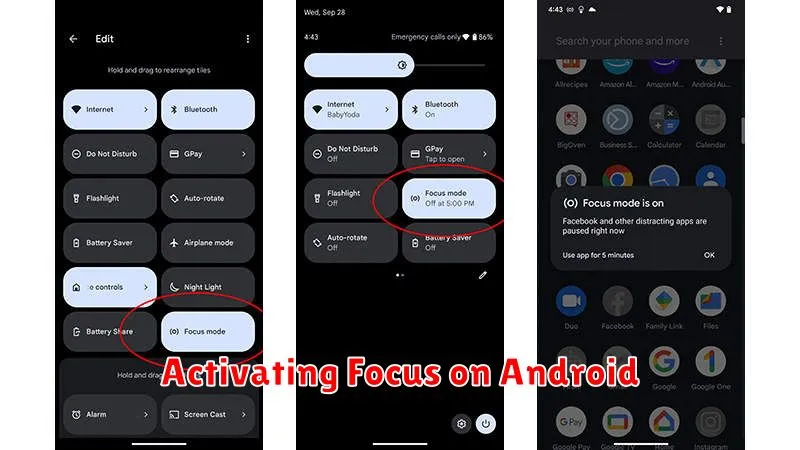
The process for activating Focus mode varies slightly depending on your Android version and device manufacturer. However, the core steps remain relatively consistent. Digital Wellbeing or similar is the key setting to look for.
Typically, you begin by opening your device’s Settings app. From there, look for Digital Wellbeing & parental controls, or a similarly named option. Some manufacturers might place this within a different section like “Notifications” or directly within the quick settings panel accessible by swiping down from the top of the screen.
Once inside Digital Wellbeing, you should find a section labeled “Focus mode” or “Do Not Disturb“. Select this option. You’ll then be presented with the available focus modes. These modes offer varying levels of restriction. Choose the one that aligns with your current needs. Some devices may offer the ability to customize these modes further.
After selecting a mode, you can choose which apps and contacts are exempt from the restrictions. This allows essential communication and functionality to continue uninterrupted while you maintain your focus.
Using Focus on iPhone
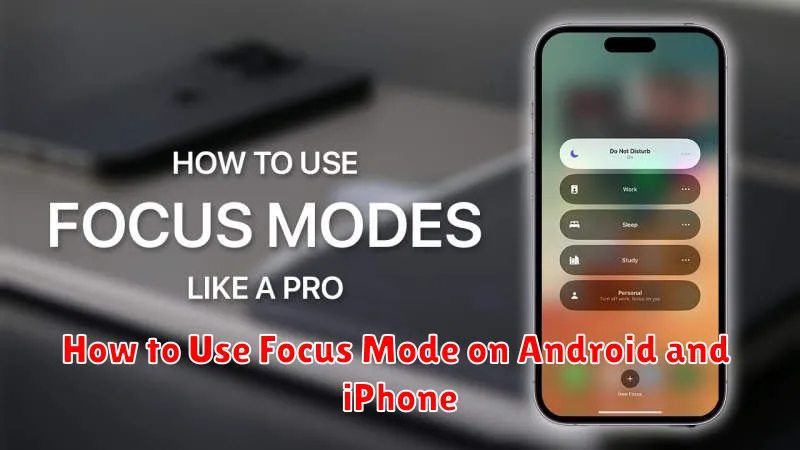
Focus on iPhone allows you to minimize distractions and concentrate on specific tasks or situations. You can customize various Focus modes or utilize the pre-configured options.
To activate a Focus, open the Control Center by swiping down from the top-right corner of the screen (on iPhones with Face ID) or swiping up from the bottom of the screen (on iPhones with a Home button). Tap the Focus button. Select the Focus mode you wish to enable, such as Do Not Disturb, Personal, Work, or Sleep.
Customizing a Focus allows you to specify which contacts and apps can send you notifications while the Focus is active. You can also schedule Focus modes to turn on and off automatically at certain times or locations.
To customize a Focus, go to Settings > Focus. Choose the Focus you wish to modify. From here, you can personalize Allowed Notifications, Focus Status (shared status), and set a customized Schedule.
Customizing Allowed Notifications
A key feature of Focus Mode is the ability to customize which notifications are allowed through. This allows you to prioritize essential communications while minimizing distractions.
Both Android and iPhone offer granular control over notification permissions during Focus Mode. You can typically specify allowed apps and contacts. For example, you might choose to allow calls from family members, but silence work-related notifications.
The process for customizing these settings varies slightly between operating systems. On Android, look for “Focus mode” or “Do Not Disturb” within your settings. On iPhone, access “Focus” within the Settings app.
Within these settings, you’ll find options to personalize allowed notifications for each specific Focus you’ve created (e.g., Work, Sleep, Personal).
Schedule Focus Automatically
One of the most powerful features of Focus Mode is the ability to schedule it automatically. This allows you to preemptively minimize distractions during specific times or for certain activities. Instead of manually activating Focus each time, you can set it to turn on and off based on a schedule.
You can schedule Focus Mode based on various criteria, such as:
- Time: Set specific start and end times for your Focus. For example, from 9 AM to 5 PM for work.
- Location: Trigger Focus when you arrive or leave specific locations like your office or the gym.
- App: Activate Focus automatically when you open a certain app, like a work app or a game.
By scheduling your Focus, you create a structured environment that promotes productivity and minimizes distractions without requiring constant manual adjustments.
