

Is your smartphone lagging, freezing, or generally running slower than a snail? A slow smartphone can be incredibly frustrating, impacting productivity and making even simple tasks a chore. This article will explore practical and effective methods to speed up your slow smartphone, regardless of its operating system. We’ll cover everything from quick fixes to more advanced solutions, helping you reclaim the speed and responsiveness you deserve. Learn how to diagnose the root cause of a slow smartphone and discover the best strategies to optimize its performance.
Whether you’re struggling with slow app loading times, experiencing sluggish performance, or constantly battling the dreaded “spinning wheel of death,” this guide will provide actionable steps to address these issues. We’ll delve into the common culprits behind a slow smartphone, such as excessive background processes, insufficient storage, outdated software, and more. By implementing the techniques outlined in this article, you can significantly speed up your slow smartphone and enjoy a smoother, more efficient mobile experience.
Restart Regularly
It may seem simple, but regularly restarting your smartphone can significantly improve its performance. Over time, apps can consume memory and processing power even after you’ve closed them. A restart clears these processes and gives your phone a fresh start.
Think of it like rebooting your computer. Occasionally, the system needs a refresh to clear out temporary files and resolve minor software glitches that can slow things down. Restarting your phone allows the operating system to reload and function optimally.
How often should you restart? While there’s no magic number, a good rule of thumb is to restart your phone at least once a week. If you notice your phone becoming sluggish more frequently, consider restarting it more often. A quick restart only takes a minute or two and can make a noticeable difference in your phone’s responsiveness.
Clear Cache Data
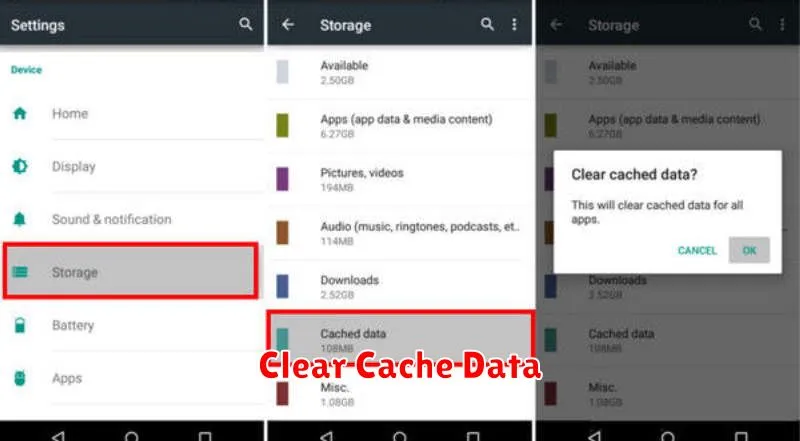
Cached data helps apps load faster, but over time, it can accumulate and take up valuable storage space, potentially slowing down your device. Clearing cached data can often improve performance, especially if you haven’t done it in a while.
How to clear cached data varies slightly between Android versions and phone manufacturers, but the general process is as follows:
- Open the Settings app.
- Look for Storage or sometimes Apps & notifications.
- Find an option to view all apps or manage storage.
- Select the app you wish to clear the cache for.
- Tap on Storage (if applicable).
- Select Clear Cache.
Clearing cached data will not delete app data such as login information or saved game progress. However, it’s important to note that clearing data for certain apps might require you to re-enter login credentials or re-customize preferences.
Uninstall Unused Apps
One of the easiest ways to speed up your smartphone is to uninstall applications you no longer use. These apps take up valuable storage space and can run background processes that consume system resources. Over time, accumulated unused apps can significantly slow down your device.
To uninstall apps on most Android devices, go to your device’s settings, then select “Apps” or “Applications.” Find the app you want to remove and tap “Uninstall.” For iOS devices, long-press the app icon until it jiggles, then tap the “X” to delete.
Regularly reviewing and uninstalling unused apps is highly recommended for maintaining optimal smartphone performance.
Disable Animations and Effects
Animations and visual effects, while visually appealing, can consume system resources and contribute to a sluggish smartphone experience. Disabling or reducing these effects can noticeably improve performance, especially on older or less powerful devices.
Most smartphones offer options to customize or disable animations. Look for settings related to “Animations,” “Transition effects,” or “Visual effects.” These settings often allow you to adjust animation speed or turn them off completely. Reducing animation scale or disabling them altogether can free up resources and make your phone feel snappier.
Typical animation settings you might encounter include:
- Window animation scale: Controls the speed of window transitions.
- Transition animation scale: Governs the speed of transitions between screens and apps.
- Animator duration scale: Affects the duration of other system animations.
Experiment with these settings to find a balance between visual appeal and performance that suits your needs.
Free Up Storage Space
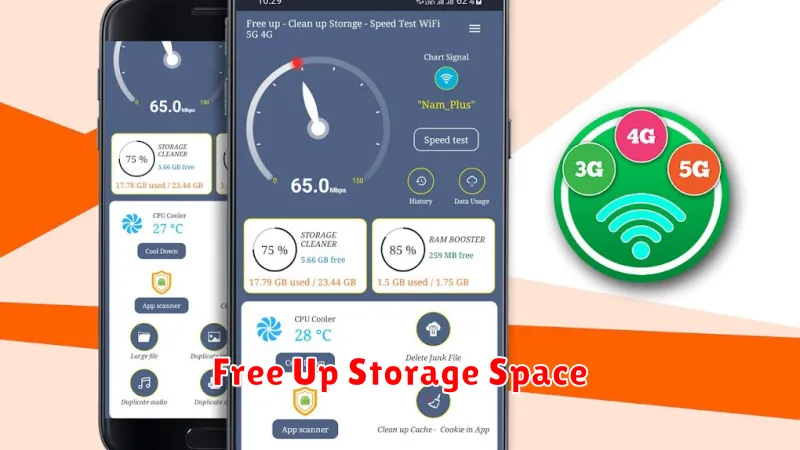
Insufficient storage space can significantly impact your smartphone’s performance. When your device is nearing full capacity, it struggles to run apps and processes efficiently. Freeing up storage can lead to noticeable improvements in speed and responsiveness.
Start by identifying what’s consuming the most space. Typically, photos, videos, and apps are the main culprits. Consider deleting unused apps or moving photos and videos to cloud storage services or an external drive.
Clearing your browser cache and app data can also reclaim valuable space. Within your phone’s settings, you can locate storage management tools to help you identify and remove unnecessary files, such as downloaded documents and temporary files.
