
In today’s interconnected world, Bluetooth technology plays a vital role in seamlessly connecting our phones to a wide array of devices. Whether you want to listen to music through Bluetooth headphones, share files with a nearby laptop, or track your fitness with a Bluetooth-enabled smartwatch, understanding how to establish these connections is essential. This guide will provide clear and comprehensive instructions on how to connect your phone to Bluetooth devices, covering various operating systems and scenarios to ensure a smooth and successful pairing experience. Learn how to navigate the Bluetooth settings on your phone, initiate pairing requests, troubleshoot common connection issues, and maximize the potential of your Bluetooth-enabled devices.
Connecting your phone to Bluetooth devices opens a world of possibilities. From hands-free calling in your car to controlling your smart home appliances, the convenience and versatility offered by Bluetooth connectivity are undeniable. This article will empower you to take full advantage of this technology, guiding you step-by-step through the process of establishing Bluetooth connections with various devices. Whether you’re a tech novice or a seasoned user, the following instructions will help you confidently connect your phone to Bluetooth devices and unlock the full potential of wireless communication.
Turn on Bluetooth
The first step in connecting your phone to a Bluetooth device is to enable Bluetooth functionality on your phone. This process may vary slightly depending on your phone’s operating system and manufacturer, but generally follows similar steps.
Android Devices
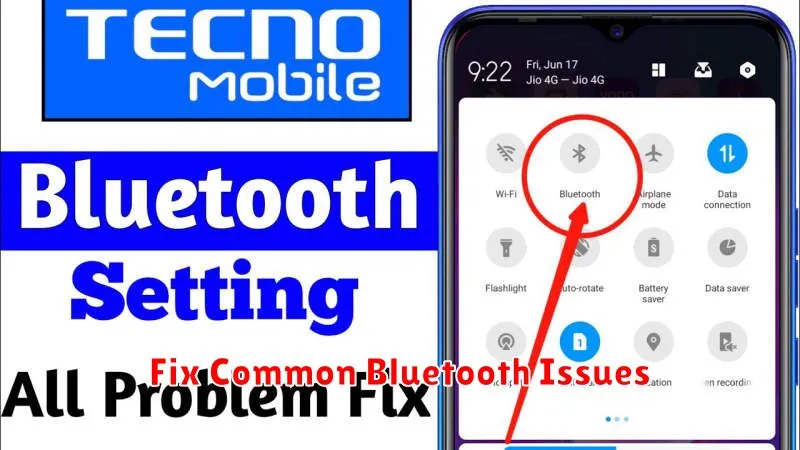
On most Android devices, you can access the Bluetooth settings through the Quick Settings panel. Swipe down from the top of the screen to reveal the Quick Settings. Look for the Bluetooth icon. Tap the icon to turn Bluetooth on. If you don’t see the icon, you may need to swipe down a second time to reveal all Quick Setting options.
Alternatively, you can access Bluetooth settings through the Settings app. Open the Settings app and look for “Connected devices” or a similarly named option. Tap on this option, then tap on “Connection preferences” or “Bluetooth“. Toggle the switch to enable Bluetooth.
iOS Devices
For iOS devices, access the Control Center by swiping down from the top-right corner of the screen (iPhone X and later) or swiping up from the bottom of the screen (older iPhones). Tap the Bluetooth icon to turn it on.
You can also enable Bluetooth through the Settings app. Open the Settings app and tap “Bluetooth“. Toggle the switch to turn it on.
Put Device in Pairing Mode
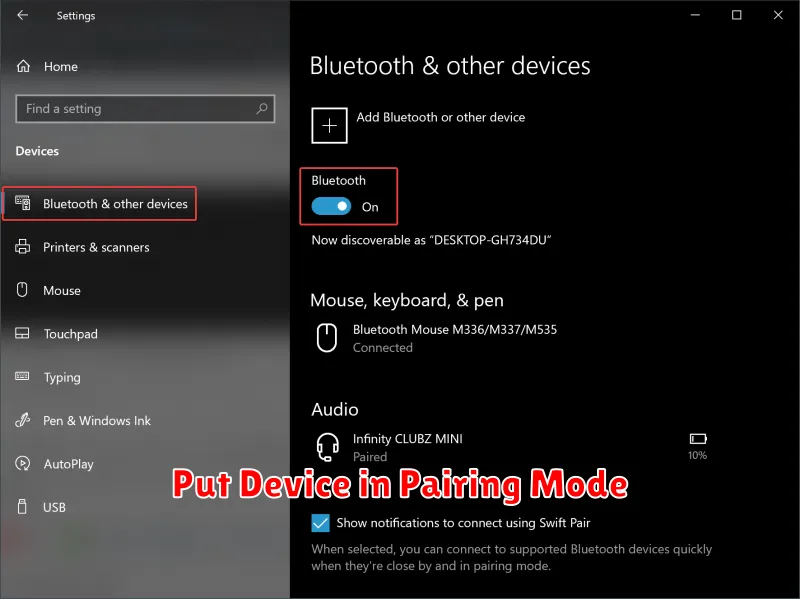
Before your phone can connect to a Bluetooth device, the device needs to be discoverable. This is often referred to as pairing mode. How you activate pairing mode varies depending on the device.
Consult the manufacturer’s instructions for your specific device. Common methods include:
- Pressing and holding a dedicated pairing button.
- Toggling a switch on the device.
- Using a combination of button presses.
Typically, an indicator light will flash or blink to signify that the device is in pairing mode and ready to be discovered by your phone.
Some devices have automatic pairing modes that activate when they are powered on or when no devices are currently connected.
Search and Connect
Once your phone’s Bluetooth is enabled, it’s time to search for available devices. This process usually involves a “scan” or “search” function within your phone’s Bluetooth settings. Your phone will then display a list of discoverable Bluetooth devices within range.
Important: Ensure the device you want to connect to is in pairing mode. This usually involves pressing and holding a button on the device until an indicator light flashes. Refer to your device’s manual for specific instructions.
From the list of available devices on your phone, select the device you wish to pair with. Your phone may then display a passkey or PIN. If prompted, confirm that the passkey displayed on your phone matches the one on the Bluetooth device. In some cases, you may need to manually enter the passkey on both devices.
Once the passkeys are confirmed, your phone and the Bluetooth device should connect. A notification on your phone typically confirms the successful connection. The connected device will also appear in your phone’s list of paired devices.
Manage Connected Devices
After successfully connecting your phone to a Bluetooth device, managing these connections is essential for a seamless experience. This involves understanding how to switch between paired devices, disconnect from a device, or remove a device entirely.
To switch between connected devices, access your phone’s Bluetooth settings. A list of paired devices will be displayed. Simply select the desired device to connect. Your phone will automatically disconnect from the current device and connect to the selected one.
Disconnecting a device is straightforward. In your Bluetooth settings, locate the currently connected device. Select it, and choose the option to disconnect. This will sever the connection without unpairing the device.
If you wish to remove a paired device, locate the device in your Bluetooth settings. Select the device and choose the option to “forget” or “remove” it. This will unpair the device, requiring you to repeat the pairing process if you wish to connect to it again in the future.
Fix Common Bluetooth Issues
Sometimes, connecting via Bluetooth can be tricky. Here are some common issues and how to fix them:
Device Discoverability
Ensure both your phone and the Bluetooth device are discoverable. Refer to your device manuals for specific instructions on how to enable this discovery mode.
Pairing Issues
If you’re having trouble pairing, try restarting both devices. Also, ensure the devices are close enough for a stable connection. Some devices have a limited range, usually around 30 feet.
Connection Drops
Interference can cause dropped connections. Try moving closer to the device or moving away from potential sources of interference, such as other electronic devices. Updating your phone’s software can also resolve compatibility issues.
Audio/Sound Problems
If you experience poor sound quality or no sound at all, check the volume levels on both devices. Ensure the correct Bluetooth profile is selected on your phone. For audio streaming, the A2DP profile is typically used.
