
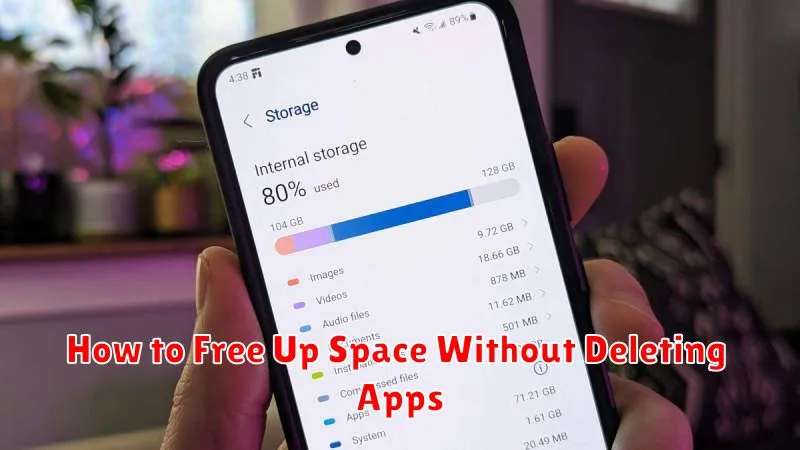
Running low on storage space on your phone or tablet can be incredibly frustrating. Constantly having to delete photos, videos, or even apps to make room for new content disrupts your workflow and limits your device’s functionality. Fortunately, there are numerous effective strategies to free up space without resorting to deleting your favorite apps. This article will guide you through practical steps you can take to reclaim valuable storage space and keep all your essential applications.
Learn how to free up space without deleting apps by employing simple yet powerful techniques. We’ll explore methods to clear cached data, manage downloaded files, and optimize your device’s storage settings. By implementing these strategies, you can maximize your storage space and enjoy a smoother, more efficient mobile experience, all without sacrificing the convenience of your installed applications. Reclaim your device’s performance and say goodbye to constant storage warnings.
Clear Cache and App Data
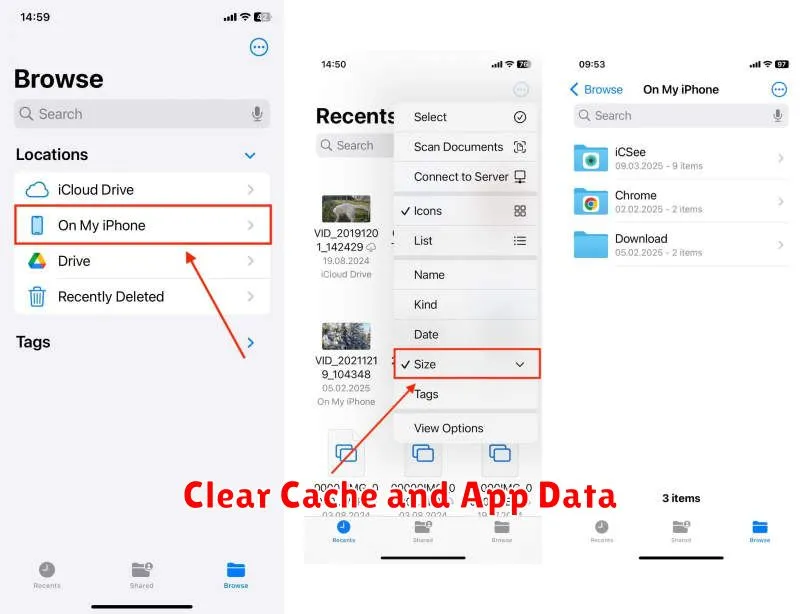
Clearing cached data and app data is a highly effective way to reclaim storage space without uninstalling apps. Cache consists of temporary files stored by apps to speed up loading times. While beneficial, it can accumulate and consume significant space. App data, on the other hand, includes user-specific information like login details and preferences.
Clearing the cache will remove temporary files and typically won’t affect app functionality. However, clearing app data will reset the app to its default state, requiring you to re-enter login credentials and reconfigure settings. Therefore, it’s crucial to understand the distinction before proceeding.
Clearing Cache
Most devices offer a centralized location in the Settings app to clear the cache for all apps simultaneously. Alternatively, you can clear the cache on a per-app basis within the App Info section.
Clearing App Data
Similar to clearing cache, app data can often be cleared for all apps at once or individually through the App Info settings. Be mindful of the implications before clearing app data, as it will delete your personalized app settings and saved information.
Offload Unused Apps
Offloading apps is a valuable tool for reclaiming storage space without completely removing the app and its associated data. This feature allows you to delete the app itself, freeing up the storage it occupies, while preserving its documents and data.
When you choose to offload an app, the icon remains on your home screen. If you later decide you need the app, simply tap the icon, and the system will automatically redownload it. Your data will be restored seamlessly, allowing you to continue where you left off. This process requires an active internet connection.
This method is particularly useful for apps you rarely use but want to keep their data for future access. Consider offloading large games or productivity apps that you only use occasionally. This allows you to keep the convenience of quick access without sacrificing valuable storage space.
Move Files to Cloud Storage
Moving files to cloud storage is an effective way to free up space on your device without uninstalling apps. Cloud services like Google Drive, Dropbox, and OneDrive offer varying amounts of free storage, allowing you to offload files without losing access to them.
Key benefits of using cloud storage include:
- Accessibility: Access your files from any device with an internet connection.
- Backup and recovery: Cloud storage provides a backup of your important files in case of device failure or loss.
- Sharing: Easily share files with others without needing physical storage media or email attachments.
To move files to the cloud, typically you need to install the cloud provider’s app and then either upload the files directly or move them into the designated cloud storage folder on your device. Remember to review the chosen cloud storage provider’s terms of service regarding storage limitations, privacy policies, and any applicable fees for exceeding free storage tiers.
Delete Old Media Files
Media files, such as photos and videos, often consume a significant portion of storage space. Regularly reviewing and deleting unnecessary media can free up a substantial amount of space on your device.
Consider deleting:
- Duplicate photos and videos: Many apps are available to help identify and remove duplicates.
- Blurry or poor-quality media: These files rarely offer any value and take up unnecessary space.
- Old screenshots: Screenshots can accumulate quickly. Review and delete any that are no longer needed.
- Downloaded videos you’ve already watched: If you’re not likely to rewatch them, deleting them can save space.
After deleting files from your device, remember to also empty the “Recently Deleted” folder to permanently remove them and reclaim the storage space.
Review Downloads and Documents
Downloaded files and documents often take up significant storage space. Regularly reviewing these items can help reclaim valuable space on your device.
Identify large files taking up unnecessary space. Consider deleting or moving these items to cloud storage or an external drive.
Sort files by size to quickly locate the largest culprits. This allows for efficient management of your storage.
Delete unnecessary documents. Old files, outdated presentations, or duplicate copies are prime candidates for removal.
