
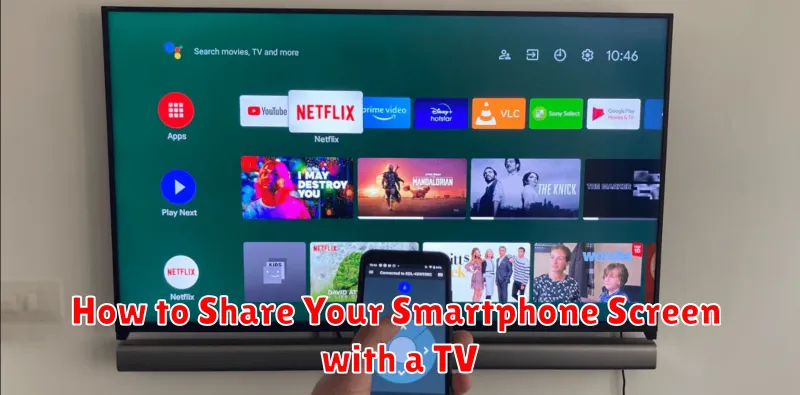
Sharing your smartphone’s screen with a TV can greatly enhance your viewing experience. Whether you want to share photos, watch videos, play mobile games on a larger display, or deliver presentations from your phone, screen mirroring opens up a world of possibilities. This comprehensive guide will walk you through various methods to seamlessly connect your smartphone to your TV, regardless of the operating system (Android or iOS) or the specific TV model you own.
Learning how to screen mirror is remarkably simple and can be achieved through several methods, including wireless connections like Miracast, AirPlay, or Chromecast, as well as using HDMI cables for a direct, wired connection. Understanding these different approaches allows you to choose the best screen sharing method suited to your specific devices and needs. This guide will cover each of these methods in detail, providing step-by-step instructions for a successful screen sharing experience. By the end, you’ll be able to confidently share your smartphone screen with your TV and enjoy your mobile content on the big screen.
Use Wireless Display Options
Wireless display technologies allow you to mirror your smartphone’s screen on your TV without physical cables. This offers a convenient and clutter-free setup. Ensure both your TV and smartphone support the same wireless standard.
Common Wireless Display Standards:
- Miracast: A popular standard supported by many Android devices and some TVs. Look for the Miracast certification on your devices.
- AirPlay: Primarily used for Apple devices to stream content to Apple TV or compatible smart TVs. Ensure your iPhone and TV are on the same Wi-Fi network.
- Chromecast built-in: Allows casting from Chrome browsers and compatible apps on various devices, including Android and iOS, to Chromecast-enabled TVs.
The exact steps to enable wireless display may vary depending on your device and TV model. Generally, you’ll need to enable screen mirroring or casting on your smartphone and select your TV from the available devices.
Connect via HDMI or Adapter
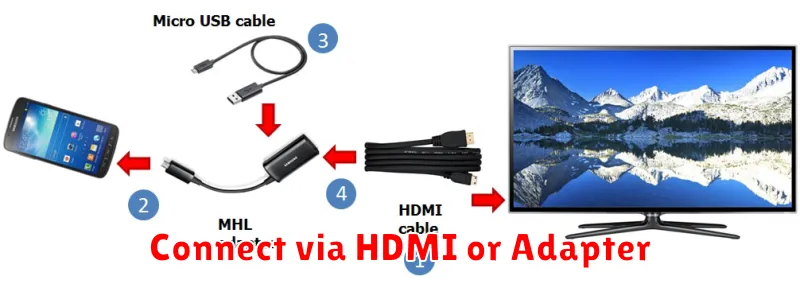
A wired connection using HDMI offers the most reliable screen mirroring experience with minimal lag. This method typically requires an HDMI adapter specifically designed for your smartphone’s connection port (e.g., USB-C, Lightning).
Identify the correct adapter. Research compatible adapters for your specific smartphone model. Adapters often include charging capabilities, which is useful for longer viewing sessions.
Connect your smartphone to the TV. Plug the adapter into your smartphone and connect an HDMI cable between the adapter and an available HDMI port on your TV.
Select the correct input source. Using your TV’s remote control, choose the HDMI input that corresponds to the port where you connected the adapter.
Adjust your phone’s settings (if necessary). Some devices may require you to enable HDMI output or screen mirroring within the display settings.
Use Chromecast or AirPlay
Chromecast and AirPlay are popular wireless streaming protocols that allow you to mirror your smartphone’s screen to a compatible TV. Choosing between them depends primarily on the devices you own.
Chromecast
If you have an Android device or use Google Chrome on your computer, Chromecast is a natural choice. Ensure your Chromecast device is plugged into your TV’s HDMI port and connected to the same Wi-Fi network as your smartphone. Then, open a compatible app (like YouTube or Netflix) and tap the cast icon. You can also mirror your entire Android screen by going to your phone’s settings and looking for the “Cast” or “Screen mirroring” option.
AirPlay
If you use an iPhone, iPad, or Mac, AirPlay is the equivalent technology. Make sure your Apple device and your Apple TV or AirPlay 2-compatible smart TV are on the same Wi-Fi network. On your iPhone or iPad, swipe down from the top-right corner (or up from the bottom on older devices) to access Control Center, and tap the “Screen Mirroring” icon. Select your Apple TV or smart TV. On a Mac, click the AirPlay icon in the menu bar and choose your TV.
Adjust Screen Mirroring Settings
Once you’ve successfully initiated screen mirroring, you might need to adjust certain settings for optimal viewing. These settings can usually be accessed through your smartphone’s notification panel or settings menu while mirroring is active.
Adjusting Resolution: Some screen mirroring protocols allow for resolution adjustments. A lower resolution can improve performance if you experience lag, while a higher resolution offers better image quality if your network and TV support it. Experiment to find the best balance.
Adjusting Volume: Volume control during screen mirroring can sometimes be tricky. Ensure your TV’s volume is at a comfortable level. If the audio continues to play from your smartphone instead of the TV, check your phone’s sound settings and ensure the audio output is directed to the mirroring device.
Rotation Lock: If the mirrored content appears sideways or upside down, adjusting the rotation lock on your smartphone can fix the orientation. Disable rotation lock to allow the screen to rotate freely, or lock it in the desired orientation.
Troubleshooting Display Issues
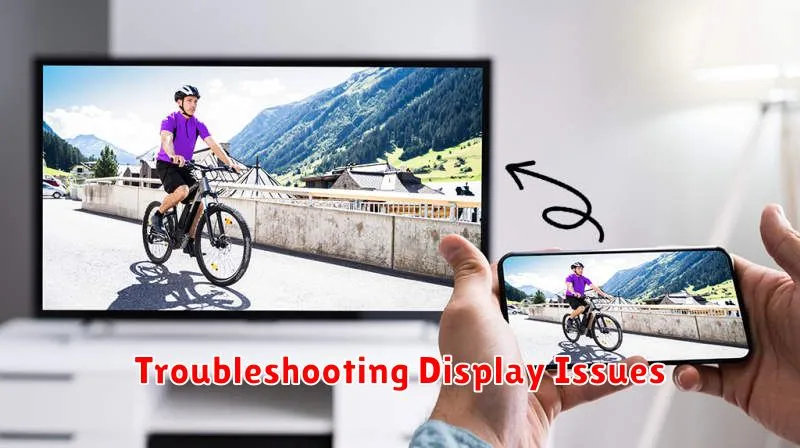
Occasionally, you might encounter problems when trying to mirror your smartphone’s screen. This section offers solutions to common display issues.
No Signal on the TV
If your TV shows “No Signal,” ensure the connection between your phone and TV is secure. Double-check cables if using a wired method, or verify that both devices are on the same Wi-Fi network for wireless connections. Restarting both devices can also resolve temporary glitches.
Black Screen on the TV
A black screen may indicate a compatibility issue with the content being mirrored. Some apps, particularly those with protected content, prevent screen sharing. Try mirroring a different app or your phone’s home screen to determine if this is the cause.
Low Resolution or Lag
Poor picture quality or noticeable lag can stem from network congestion. If using Wi-Fi, try moving closer to the router or minimizing the number of devices using the network. For wired connections, ensure you’re using a high-quality cable.
