
In today’s interconnected world, sharing files quickly and efficiently between devices is paramount. Whether you’re collaborating on a project, sharing photos with friends, or simply transferring a document, seamless file sharing can significantly enhance productivity and connectivity. This article explores two prominent file-sharing features: Nearby Share (for Android devices) and AirDrop (for Apple devices), providing a comprehensive guide on how to use these technologies effectively. We will delve into the intricacies of each platform, highlighting best practices and troubleshooting common issues to ensure you can share files seamlessly.
Nearby Share and AirDrop offer intuitive solutions for local file transfers, eliminating the need for cables, emails, or third-party apps. Learn how to use these powerful tools to their full potential. This guide covers setup, device compatibility, optimizing transfer speeds, privacy considerations, and troubleshooting tips for both Nearby Share and AirDrop, empowering you to share files with ease and efficiency. Discover how to quickly share photos, videos, documents, and more between compatible devices. Master the art of local file sharing and streamline your workflow.
What Is Nearby Share and AirDrop?
Nearby Share and AirDrop are prominent file-sharing features available on respective mobile operating systems. They facilitate quick and easy transfer of files between devices in close proximity.
Nearby Share is developed by Google for Android devices. It uses a combination of Bluetooth, Bluetooth Low Energy, WebRTC, or peer-to-peer Wi-Fi to transmit data. This allows users to share photos, videos, documents, and more with nearby Android phones, tablets, and even Chromebooks.
AirDrop, on the other hand, is Apple’s proprietary file-sharing service for its ecosystem. It utilizes a combination of Bluetooth and Wi-Fi to create a direct ad-hoc connection between Apple devices such as iPhones, iPads, and Macs, enabling seamless file transfers.
Turn On and Configure Sharing Settings
Before using Nearby Share or AirDrop, ensure the feature is enabled and configured correctly on your device. This involves activating the service and selecting the appropriate visibility settings.
Nearby Share (Android)
Open your device’s Settings app, then tap Google and then Nearby Share. Toggle Nearby Share on. Tap Device visibility to choose who can see your device: All Contacts, Some Contacts, or Hidden. Choosing Some Contacts will prompt you to select specific contacts with whom you’d like to share.
AirDrop (Apple)
Open Control Center. On iPhone X or later, or iPad with iPadOS 12 or later, swipe down from the upper-right corner of the screen. On iPhone 8 or earlier, swipe up from the bottom edge of the screen. Press firmly or touch and hold the network settings card in the upper-left corner. Tap AirDrop, then choose a visibility setting: Receiving Off, Contacts Only, or Everyone.
Send Files Across Devices
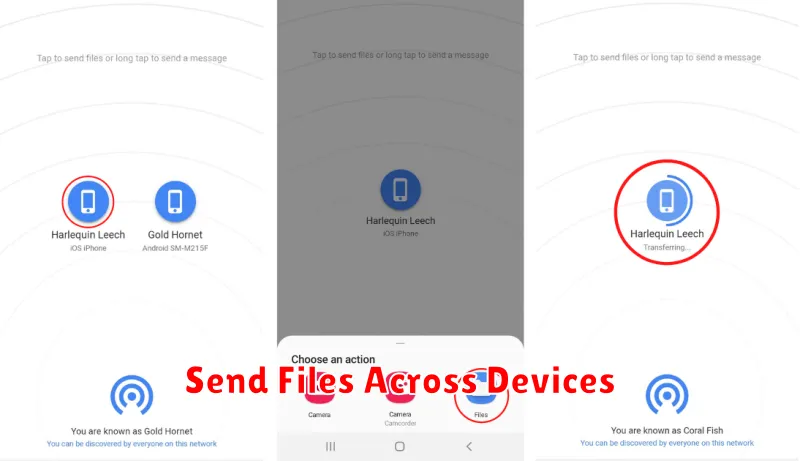
Both Nearby Share (Android) and AirDrop (Apple) facilitate seamless file transfers between devices. They utilize a combination of Bluetooth for discovery and Wi-Fi for high-speed transfer, enabling quick sharing of photos, videos, documents, and more. Choosing the right method depends on your device’s operating system.
Nearby Share, available on Android devices, allows sharing with other Android phones or tablets in close proximity. Ensure both devices have Nearby Share enabled and are discoverable.
AirDrop, exclusive to Apple devices, allows sharing between iPhones, iPads, and Macs. Ensure both devices have AirDrop enabled and choose the appropriate receiving setting (Contacts Only or Everyone).
Privacy Considerations
While Nearby Share and AirDrop offer convenient file sharing, it’s crucial to be mindful of privacy. Visibility settings play a key role. Understand the different options (e.g., all contacts, some contacts, or no one) and choose the one that best suits your needs. Regularly review and adjust these settings as needed.
Be cautious about accepting files from unknown senders. Similar to email attachments, files received via Nearby Share or AirDrop could contain malware. Only accept files from trusted sources.
Location services are essential for these features to function. Be aware that enabling these services shares your approximate location with other devices. Consider disabling these features when not in use to limit location sharing.
Troubleshooting Transfer Errors
Occasionally, you may encounter issues when using Nearby Share or AirDrop. This section provides troubleshooting steps for common transfer errors.
Connectivity Issues
Ensure both devices have the necessary features enabled. For Nearby Share, confirm that Bluetooth and Location are active. For AirDrop, verify that both Wi-Fi and Bluetooth are turned on. Check if the devices are within range. Nearby Share and AirDrop require the devices to be relatively close to each other.
Device Compatibility
Verify device compatibility. Nearby Share works on Android devices, while AirDrop is designed for Apple devices. Ensure both devices support the respective feature. Older devices might not have the latest versions necessary for optimal performance.
File Size and Type
While there are generally no file type restrictions, extremely large files may cause transfer issues. Consider compressing large files before sharing or transferring them in smaller parts. Certain file types might be handled differently across platforms.
Interference
Minimize interference. Other wireless devices or physical obstructions can sometimes disrupt the transfer process. Try moving the devices closer together or to a location with less interference.
Software Updates
Ensure your device’s operating system and related services are up-to-date. Software updates often include performance improvements and bug fixes that can resolve transfer issues.
