

Android accessibility features offer a powerful suite of tools designed to make smartphones more usable for individuals with a range of disabilities. Whether you experience visual, auditory, motor, or cognitive impairments, these features can significantly enhance your interaction with your Android device. Exploring these top Android accessibility features can unlock a more user-friendly and inclusive mobile experience. From screen readers and voice control to customizable displays and adaptive interactions, Android provides a customizable environment catered to individual needs. Understanding and utilizing these features can improve device navigation, communication, and overall usability.
This article will delve into some of the most impactful Android accessibility features available, providing a comprehensive guide to their functionality and benefits. We’ll explore how these features can be customized to address specific needs, ensuring a more accessible and personalized experience for every user. Learn how to leverage the power of Android accessibility to maximize your device’s potential and enjoy a more seamless mobile experience, regardless of your abilities. By understanding and implementing these features, you can transform your Android device into a truly inclusive and accessible tool.
Magnification and Text Size
Android offers robust features to enhance visibility for users with varying visual needs. Magnification allows you to zoom in on specific areas of the screen, making it easier to see small details. This feature is particularly useful for examining images or reading small text. You can activate magnification with a triple-tap or use a shortcut button.
Independent of magnification, the text size can also be adjusted. This setting affects the system-wide text size, impacting everything from app interfaces to web pages. Several pre-defined sizes are available, allowing you to choose the level that best suits your comfort.
By combining these features, you can customize your Android device to provide an optimal viewing experience.
Voice Access and Commands
Voice Access is a powerful accessibility feature that allows you to control your Android device entirely with your voice. This feature is especially beneficial for users who have difficulty using touchscreens due to mobility impairments, temporary injuries, or other limitations.
With Voice Access, you can perform a wide range of actions, including opening and closing apps, navigating between screens, scrolling through content, selecting and editing text, and even interacting with specific elements within apps.
You can use voice commands to perform actions, such as “Open Chrome”, “Go Home”, “Scroll down”, “Type hello”, and many more. The system provides visual labels for interactive elements on the screen, which you can then refer to with your voice commands. For example, you can say “Tap button 1” or “Click Login” to interact with specifically labeled elements.
TalkBack for the Visually Impaired
TalkBack is a screen reader service pre-installed on most Android devices. It provides spoken feedback, allowing users with visual impairments to interact with their devices without needing to see the screen. Gestures replace taps, and TalkBack describes what’s on the screen and what actions are being performed.
Upon activation, TalkBack provides auditory descriptions of icons, buttons, and other on-screen elements. It announces incoming notifications and reads text aloud. Users navigate by swiping left and right to move between items, and double-tapping anywhere on the screen activates the selected item.
TalkBack’s settings allow for customization. Users can adjust the speaking rate, verbosity, and other aspects of the feedback. This level of control ensures a personalized experience tailored to individual needs and preferences.
Color Correction Settings
Android offers color correction features designed to improve screen visibility for users with various forms of color blindness. These settings adjust the display’s colors to compensate for difficulties in distinguishing certain hues.
Typically, you can find these settings within the Accessibility section of your device’s settings menu. Look for options like “Color correction” or “Color space correction.”
Once enabled, you’ll likely have a choice of several correction modes tailored to different types of color blindness, such as deuteranomaly (red-green), protanomaly (red-green), and tritanomaly (blue-yellow). You can experiment with each mode to find the one that best suits your needs.
Some devices may also offer a strength adjustment slider. This allows you to fine-tune the intensity of the color correction, ensuring a comfortable and effective viewing experience.
Accessibility Shortcuts
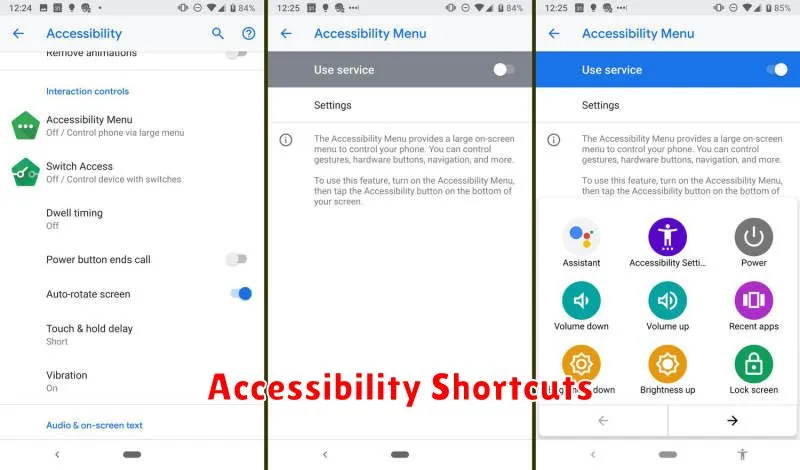
Android offers Accessibility Shortcuts to quickly activate accessibility features. These shortcuts provide immediate access to key functionalities without navigating through settings menus.
You can configure shortcuts for features like Accessibility Menu, Select to Speak, Switch Access, and Voice Access. This allows for personalized, rapid activation of the features you use most frequently.
Typically, the shortcut involves pressing both volume keys simultaneously for a few seconds. You can adjust the assigned features within your device’s accessibility settings. This provides a convenient way to manage and utilize accessibility features efficiently.
