
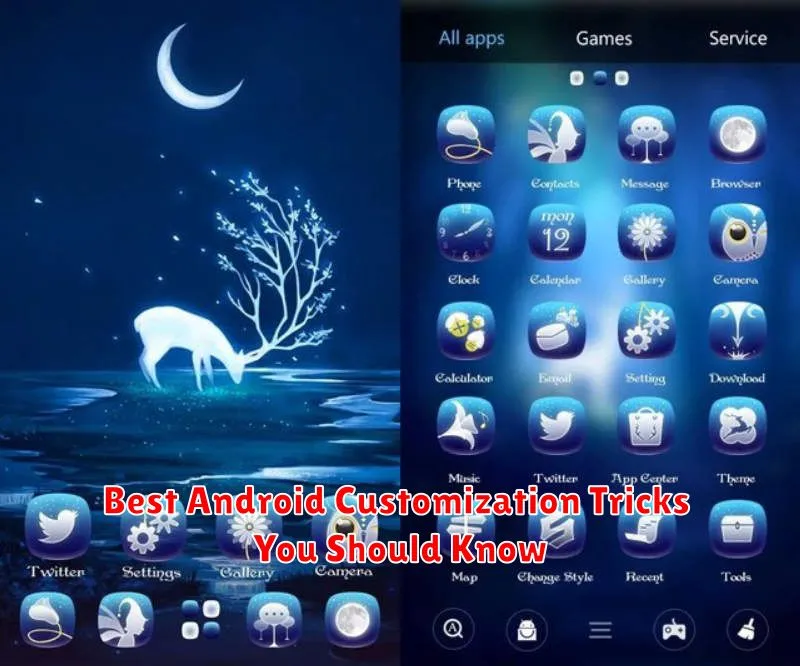
Android’s customizability is a key feature that sets it apart. From widgets and launchers to icon packs and live wallpapers, the options to personalize your Android device are virtually limitless. This article explores the best Android customization tricks you should know to truly make your phone an extension of your individual style and preferences. Whether you are looking for simple tweaks or a complete overhaul, these tips will help you master Android customization and unlock the full potential of your device. Learn how to optimize your home screen, personalize notifications, and delve into the world of third-party launchers to create a truly unique mobile experience.
Unlock the true potential of your Android device with these powerful customization tricks. This guide covers everything from basic personalization options, like changing your wallpaper and adding widgets, to more advanced techniques, such as using custom launchers and icon packs. Explore the many ways to tailor your Android experience to your specific needs and discover the best Android customization tricks for improved productivity and a truly personalized interface. Dive into the world of Android customization and transform your phone into a reflection of your personality and style.
Change Home Screen Layouts
One of the most significant advantages of Android lies in its customizability. Altering your home screen layout is a fundamental aspect of this. You can easily change the way your apps and widgets are arranged, creating a personalized and efficient experience.
Launchers play a key role in this process. While your phone comes with a default launcher, numerous third-party launchers are available on the Google Play Store. These launchers offer a wide array of customization options, allowing you to adjust grid size, icon size and shape, app drawer styles, and much more.
Experimenting with different launchers can dramatically alter the look and feel of your device. Some popular launchers include Nova Launcher, Action Launcher, and Microsoft Launcher, each offering a unique set of features and customization possibilities. Choose the launcher that best complements your style and desired functionality.
Use Icon Packs and Themes
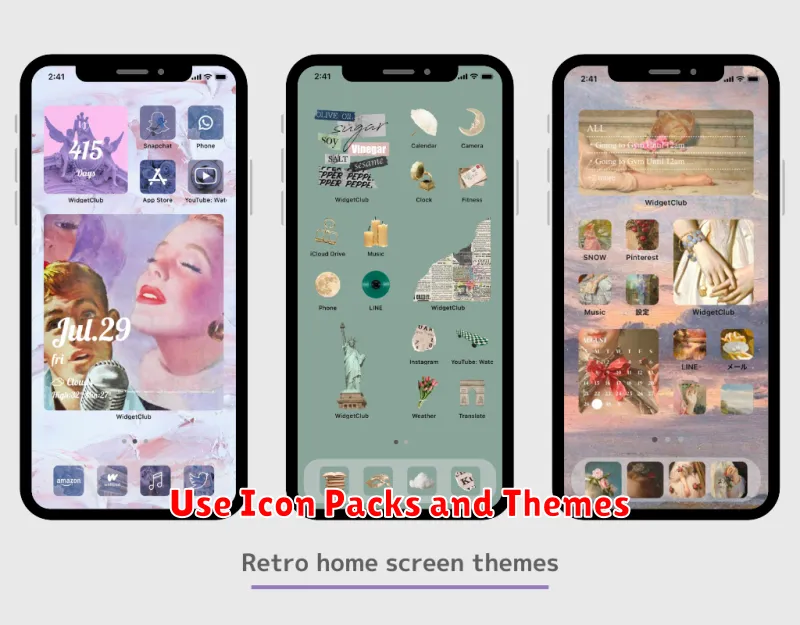
Icon packs offer a simple way to dramatically alter the look and feel of your Android device. They replace your default app icons with a cohesive set of designed alternatives. Most launchers support icon packs, allowing you to easily apply them through the launcher settings.
Furthermore, many launchers also support themes. These go beyond icon packs, often changing the appearance of widgets, wallpapers, and even the system UI elements. Themes provide a more holistic approach to customization, offering pre-designed aesthetics that can be applied with a single tap.
Choosing the right icon pack or theme can significantly enhance your Android experience, creating a personalized look that reflects your individual style.
Enable Gesture Navigation
Gesture navigation offers a more immersive and modern way to interact with your Android device. It replaces the traditional navigation buttons (back, home, and recents) with fluid swipes. This frees up screen space and provides a cleaner look.
To enable gesture navigation, go to your device’s Settings. Then, navigate to the System section, and tap on Gestures. Within the Gestures menu, you should find an option labeled System navigation. Select Gesture navigation from the available choices.
Once enabled, you can navigate your device with the following gestures:
- Go back: Swipe from the left or right edge of the screen.
- Go home: Swipe up from the bottom of the screen.
- See recent apps: Swipe up from the bottom and hold briefly.
Automate with Routines
Routines are a powerful way to automate tasks on your Android device. They allow you to trigger a series of actions based on specific criteria, such as time of day, location, or even connecting to a specific Wi-Fi network. This can significantly streamline your daily workflow and save you valuable time.
Bixby Routines (or its Google Assistant equivalent on some devices) offers an extensive set of customization options. For example, you could create a routine that automatically enables Do Not Disturb mode and lowers your screen brightness when you arrive at work. Conversely, another routine could turn on Wi-Fi and launch your favorite music app when you connect to your home network.
The possibilities are vast and allow for personalized automation tailored to your individual needs. Experiment with different triggers and actions to optimize your device for maximum efficiency.
Customize Widgets
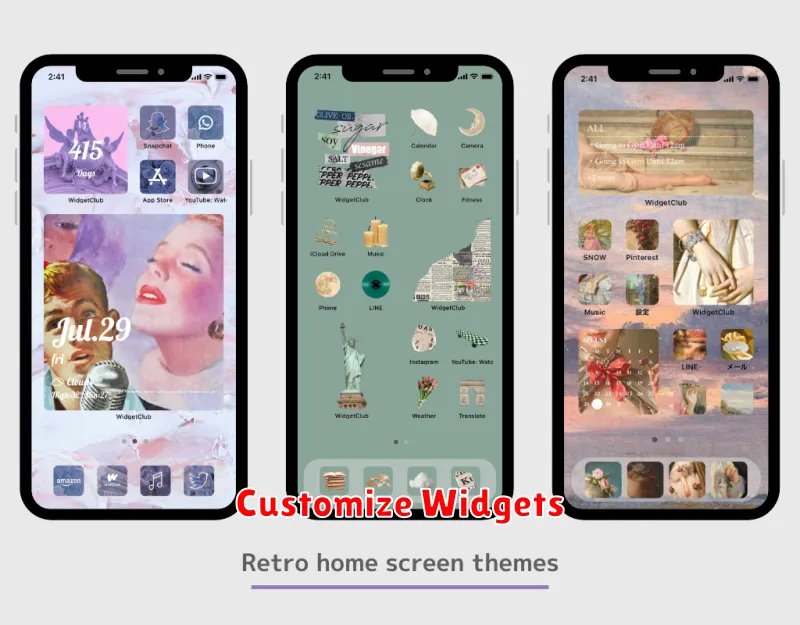
Widgets offer a convenient way to access information and interact with apps directly from your home screen. Android allows for a high degree of customization with widgets, allowing you to tailor their appearance and functionality to your preferences. This includes resizing, repositioning, and in some cases, altering the data they display.
Many apps provide multiple widget styles and sizes. Experiment with different options to find the perfect fit for your home screen layout. For example, a music player widget could range from a simple play/pause control to a larger widget displaying album art and track information. Some widgets allow you to customize specific elements, such as color schemes or displayed data points, directly within their settings.
By strategically placing and customizing widgets, you can create a truly personalized and efficient home screen experience.
