
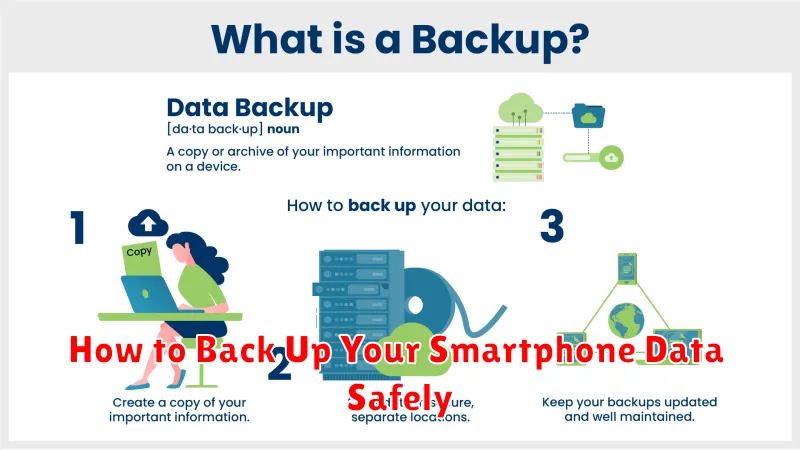
In today’s digital age, our smartphones have become indispensable tools, storing a wealth of important data, from cherished photos and videos to essential contacts and confidential documents. Losing this data can be devastating, whether due to device malfunction, theft, or accidental deletion. Therefore, creating a smartphone backup is not just a good practice—it’s an absolute necessity. This article will provide a comprehensive guide on how to back up your smartphone data safely, ensuring your valuable information remains protected, regardless of unforeseen circumstances. Learning how to back up your phone efficiently will give you peace of mind and safeguard your digital life.
We will explore various methods for smartphone data backup, catering to different operating systems and user preferences. From utilizing cloud-based services for automatic backups to leveraging local storage options for manual control, we will cover the spectrum of data backup strategies. We will also delve into the importance of data security in the backup process, highlighting techniques to ensure your backed-up data remains private and protected from unauthorized access. By the end of this article, you’ll be equipped with the knowledge and tools necessary to back up your phone effectively and safeguard your important data from loss.
Use Cloud Storage Services
Cloud storage services offer a convenient and automated way to back up your smartphone data. They provide offsite storage, protecting your data in case of device loss or damage. Consider these factors when selecting a cloud storage provider:
- Storage Capacity: Evaluate your storage needs and choose a plan that accommodates them. Many services offer free tiers with limited storage, while paid plans offer more substantial capacity.
- Security: Ensure the service employs robust security measures, such as encryption, to protect your data. Two-factor authentication is also a desirable feature.
- Automatic Backups: Opt for a service that enables automatic backups. This ensures your data is consistently and regularly backed up without manual intervention.
- Platform Compatibility: Confirm the service is compatible with your smartphone’s operating system (iOS or Android) and other devices you use.
Popular cloud storage services include providers like Google Drive, iCloud, Dropbox, and Microsoft OneDrive. Each platform offers distinct features and pricing models. Research these services thoroughly to determine the best fit for your needs.
Enable Automatic Backups
Most modern smartphones offer automatic backup functionality. Enabling this feature is the simplest way to ensure your data is consistently protected. It eliminates the need to remember to manually back up your phone, reducing the risk of data loss.
Activating automatic backups usually involves navigating to your device’s settings menu. The exact location of the backup settings may vary slightly depending on your operating system (e.g., Android or iOS) and phone manufacturer. Typically, you can find these settings within a “System” or “Backup & Restore” section.
Within the backup settings, you’ll typically have options to choose what data to back up (e.g., photos, videos, contacts, apps) and the frequency of backups (e.g., daily, weekly, monthly). Choosing daily backups offers the greatest protection against data loss, though it may consume more storage space.
Back Up Photos and Videos
Photos and videos often hold significant personal value. Losing them can be devastating. Therefore, backing them up regularly is crucial.
Several options are available for backing up your photos and videos. Cloud storage services like Google Photos, iCloud, and OneDrive offer automatic backups and convenient access across devices. Ensure you understand the storage limits and privacy policies of each service.
Alternatively, you can back up to your computer. Connecting your smartphone and transferring files manually provides more control. Ensure you store these backups in a safe location, perhaps on an external hard drive, in case of computer failure.
Export Contacts and Messages
Contacts and messages are crucial pieces of data. Thankfully, most modern operating systems offer simple methods to export them. Regularly exporting this information ensures you can restore it if your device is lost, stolen, or damaged.
For contacts, many platforms synchronize with cloud services. This means your contacts are automatically backed up as long as you’re connected to the internet. You can also often export contacts to a .vcf file, a widely accepted format that can be imported into various applications and services.
Message backups can be more complex, varying significantly between operating systems. Some offer cloud-based backups, while others allow exporting messages to a file. Ensure you understand your specific device’s capabilities and choose a method that suits your needs.
Restore from a Backup When Needed
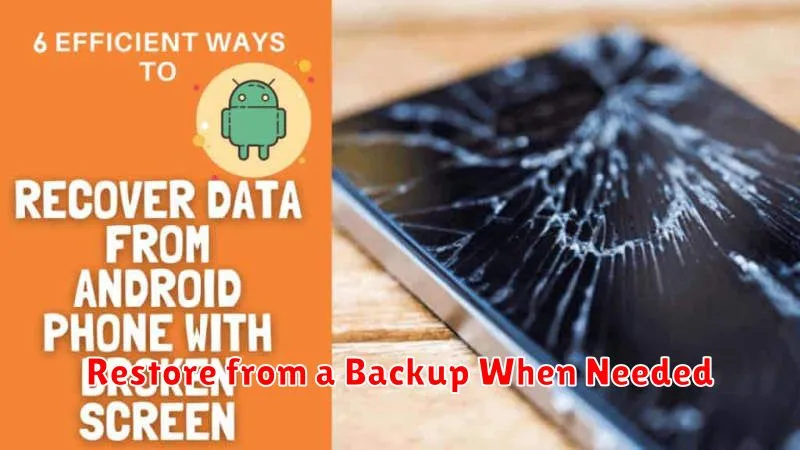
Restoring your data is a crucial aspect of the backup process. Understanding how to retrieve your information ensures you can recover from data loss effectively.
The restoration process varies depending on the backup method used. Cloud backups are often restored through the associated app or service settings. You’ll typically select the desired backup and initiate the restore process. This often involves choosing which data categories to restore, such as contacts, photos, or apps.
For local backups stored on your computer, you may need to connect your smartphone and utilize dedicated software provided by the manufacturer or operating system. Follow the on-screen prompts to locate the backup file and select the data you wish to restore.
Before restoring, ensure your device has sufficient storage space and is connected to a stable power source. The process may take some time, depending on the amount of data being restored.
