
Is your smartphone constantly running out of juice? Do you find yourself tethered to a charger, desperately seeking an outlet? In today’s fast-paced world, a reliable, long-lasting smartphone battery is essential. This article provides practical and effective strategies to extend the battery life of your smartphone, regardless of the make or model. Learn how to maximize your phone’s battery performance and minimize frustrating low-power alerts.
From adjusting your screen brightness to managing app usage, we’ll explore a range of simple yet impactful changes you can implement immediately. Discover how to optimize your smartphone’s settings to conserve power, understand the impact of various features on battery consumption, and learn how to identify battery-draining apps. By following these tips, you can significantly extend the time between charges and ensure your smartphone battery lasts throughout the day.
Lower Screen Brightness
One of the most significant drains on your smartphone’s battery is the screen. Reducing the screen brightness can substantially extend battery life.
Most smartphones offer an auto-brightness feature. Enabling this allows the phone to adjust the brightness based on the ambient light, optimizing for visibility and power consumption.
If you prefer manual control, consider lowering the brightness to a comfortable yet conservative level. Even a small reduction can make a noticeable difference over time.
Additionally, using a dark theme or wallpaper, if your phone supports it, can further reduce battery drain, especially on devices with OLED screens.
Turn Off Background Apps
Applications running in the background consume significant battery power, even when you’re not actively using them. Restricting these apps can dramatically extend your phone’s battery life. Most modern smartphones offer granular control over which apps are allowed to run in the background.
To access these settings, typically navigate to your phone’s Settings menu, then look for options like Apps & notifications, Battery, or Battery usage. Within these settings, you should find a list of your installed apps and the option to restrict their background activity.
Consider disabling background activity for apps you rarely use or those that don’t require constant updates. Prioritize apps essential for communication or those that actively sync data, such as email or messaging services. Be aware that restricting background activity might delay notifications or updates for certain apps.
Some devices offer specialized modes, like Low Power Mode or Battery Saver, that automatically limit background app activity to optimize battery life. Utilizing these modes can be a convenient way to manage battery consumption without manually configuring individual apps.
Use Battery Saver Mode
Most modern smartphones offer a built-in battery saver mode (sometimes called low power mode). This feature can significantly extend your battery life when you’re running low.
Battery saver mode works by limiting or disabling certain functions and features on your phone. Common actions include reducing screen brightness, limiting background app activity, turning off vibrations, and restricting data usage. The specific features affected vary depending on your phone’s manufacturer and operating system.
You can typically activate battery saver mode either through your phone’s quick settings panel (accessible by swiping down from the top of the screen) or within the battery settings menu. Some devices even offer the option to automatically enable battery saver mode when your battery reaches a certain percentage, such as 15% or 5%.
While battery saver mode can be incredibly helpful in extending battery life, it’s important to be aware that it can also impact your phone’s performance and functionality. For example, you may notice slower app loading times or delayed notifications. Consider using battery saver mode strategically, enabling it when you anticipate needing extra battery power.
Disable Unused Features
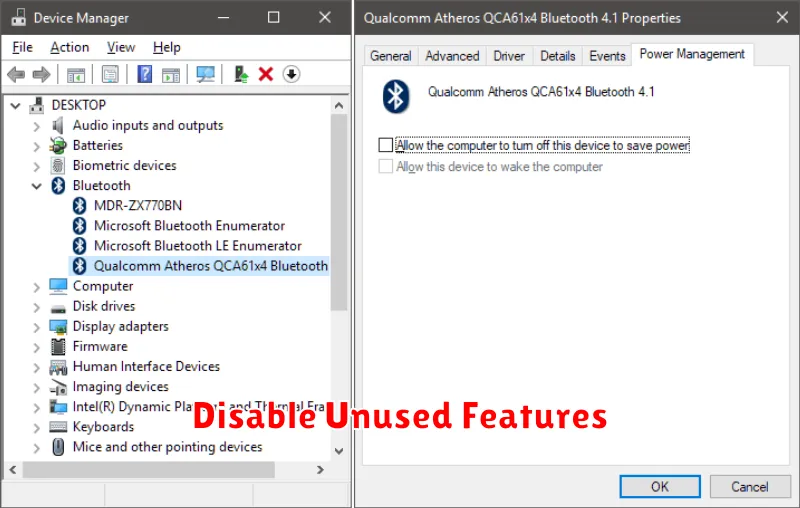
Modern smartphones are packed with features, many of which we don’t use regularly. Disabling these unused features can significantly extend your battery life. Consider turning off the following:
Location Services
While useful for navigation and location-based apps, constant location tracking consumes considerable power. Disable location services entirely or limit them to only the apps that truly require it.
Bluetooth and Wi-Fi
When not connected to a device, keeping Bluetooth and Wi-Fi enabled drains your battery. Turn them off when not in use to conserve power.
Haptic Feedback (Vibration)
While providing tactile feedback, vibration uses battery power. Consider disabling keyboard vibrations and other haptic feedback settings.
Background App Refresh
Many apps refresh in the background, consuming power even when you’re not actively using them. Restrict background activity for apps you don’t need constantly updated.
Keep Your Software Updated
Software updates often include optimizations that improve battery performance. These updates address bugs and introduce power-saving features that can significantly extend your battery life.
Manufacturers frequently release updates to operating systems and individual apps to enhance efficiency. By keeping your software current, you ensure your device benefits from the latest advancements in power management.
It’s a simple yet effective strategy to maintain optimal battery health. Regularly check for and install updates for both your operating system and installed applications.
