

Unlock the full potential of your Android device with Google Assistant. This comprehensive guide explores the best ways to utilize this powerful virtual assistant, transforming your Android experience. From streamlining everyday tasks to accessing information quickly, learn how Google Assistant can simplify your digital life. Discover how to effectively use voice commands, personalize settings, and integrate with other apps to maximize the benefits of Google Assistant on your Android device.
Whether you’re a seasoned Android user or new to the platform, mastering Google Assistant can significantly enhance your productivity and convenience. This article delves into practical tips and tricks, showcasing the diverse range of functionalities offered by Google Assistant. Learn how to set reminders, send messages, make calls, navigate with ease, and control your smart home devices, all through the power of your voice, using Google Assistant on your Android phone or tablet. Explore the best ways to leverage Google Assistant and unlock its hidden potential.
Set Up Voice Match
Voice Match allows you to personalize your Google Assistant experience and access sensitive information securely. By teaching the Assistant to recognize your voice, you can ensure that only you can unlock your device, make payments, and access personal results.
To set up Voice Match, open your device’s settings. Typically, you can find this within the “Google” or “Assistant” section. Look for “Voice Match” and follow the on-screen prompts. You’ll be asked to repeat the phrase “OK Google” a few times. This helps the Assistant learn the nuances of your voice.
Once Voice Match is enabled, you can use personalized commands like “What’s on my calendar?” or “Send a text to Mom.” The Assistant will confirm your identity before providing any personal information.
Use for Daily Reminders
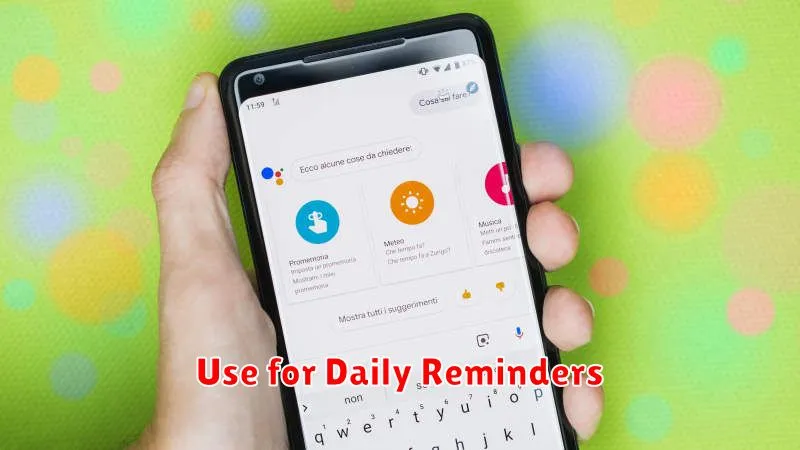
Google Assistant excels at managing daily reminders, ensuring you never miss an important task or appointment. Its voice-activated nature makes setting reminders incredibly convenient. Simply say, “Hey Google, remind me to call John at 2 PM tomorrow,” and the reminder is set.
You can create reminders for specific times, dates, and even locations. For example, you can set a reminder to buy groceries when you arrive at the supermarket. This location-based reminding is particularly useful for errands and tasks tied to specific places.
Furthermore, reminders can be recurring. Need a daily reminder to take medication? Google Assistant can handle that with ease. Just specify the frequency (daily, weekly, monthly, etc.) when creating the reminder.
Control Smart Home Devices
Google Assistant excels at managing smart home devices. Use voice commands to control lights, thermostats, and other compatible devices. This hands-free approach offers unparalleled convenience.
Connecting Devices is simple. Most smart home devices offer integration with Google Assistant through their respective apps. Follow the provided instructions within the Google Home app to link your devices.
Common Commands include turning devices on/off, adjusting brightness or temperature, and activating specific modes. For example, say “Hey Google, turn on the living room lights” or “Hey Google, set the thermostat to 72 degrees.”
Send Texts and Make Calls
Google Assistant simplifies communication by enabling hands-free texting and calling. Initiate these actions with simple voice commands. To send a text, say “Send a text to [contact name].” Google Assistant will then prompt you for your message. Similarly, for calls, say “Call [contact name]” to quickly connect.
Specify the messaging app if you use multiple platforms. For example, say “Send a WhatsApp message to [contact name].” This precision ensures your message reaches the intended recipient through the correct channel. This feature is particularly useful when you’re multitasking or driving, promoting safety and convenience.
Use Assistant for Navigation
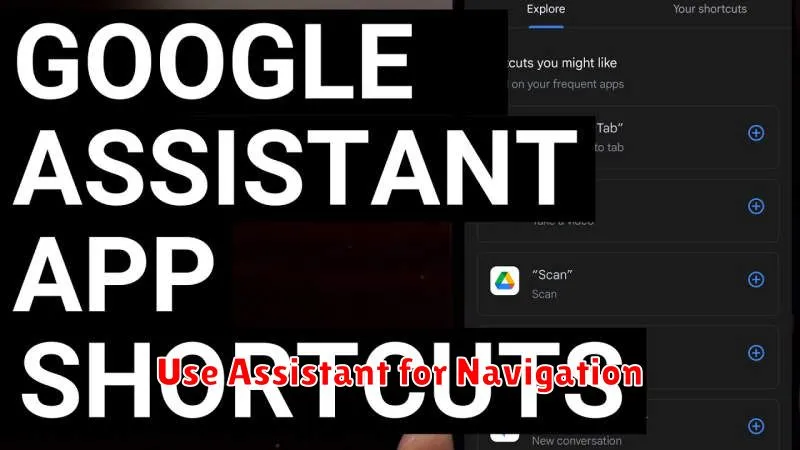
Google Assistant excels as a navigational tool, offering hands-free, voice-activated directions. Initiate navigation by saying “Navigate to [destination]” or “Directions to [destination]”. The Assistant will then present you with various route options, factoring in real-time traffic conditions.
Specify transport modes like walking, cycling, or driving to tailor the directions to your needs. For example, say, “Navigate to [destination] by bike”. You can also ask for alternative routes if you’re not satisfied with the initial suggestions. Simply state “Show me alternative routes.”
During navigation, use voice commands to perform tasks like adjusting the volume, requesting traffic updates, or finding nearby points of interest such as gas stations or restaurants. Simply ask, “What’s the traffic like ahead?” or “Find gas stations near me.”
