
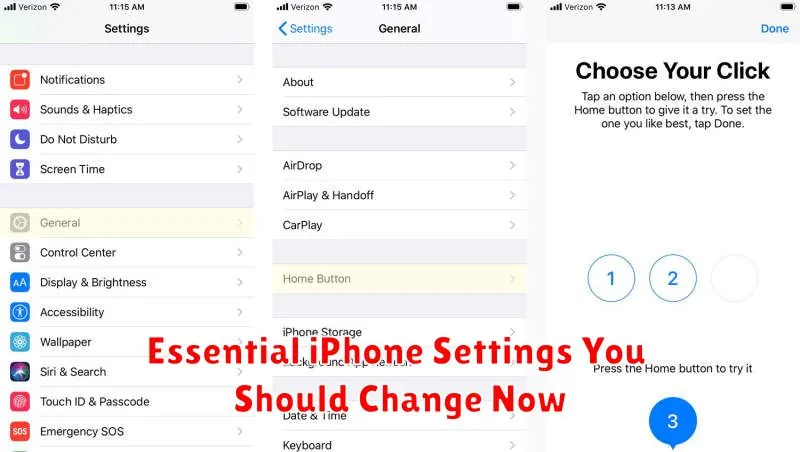
Unlock the full potential of your iPhone by adjusting these essential iPhone settings. Many default settings on your iPhone might not be optimized for your individual needs. This article explores key settings you should change now to improve your privacy, battery life, and overall user experience. From managing notifications to optimizing battery usage, discover how these simple changes can make a significant difference in how you interact with your device. Learn how to customize your iPhone to perfectly suit your preferences and enhance your daily mobile experience.
Whether you’re a new iPhone user or a seasoned veteran, this guide provides valuable insights into essential iPhone settings you may have overlooked. We will cover critical settings related to privacy, security, and performance, offering step-by-step instructions on how to change these settings now for an enhanced iPhone experience. Discover how to tailor your device to your specific requirements and maximize its potential by making these important adjustments.
Enable App Tracking Transparency
App Tracking Transparency lets you control which apps are allowed to track your activity across other companies’ apps and websites for advertising or sharing with data brokers. This is a critical privacy setting that gives you more control over your data.
To enable App Tracking Transparency:
- Open the Settings app.
- Tap Privacy & Security.
- Select Tracking.
- Toggle Allow Apps to Request to Track to off. This prevents apps from even asking for permission to track you. Alternatively, you can leave it on and individually choose which apps can track you on a per-app basis when they prompt you.
By taking this step, you significantly limit the amount of data that apps can collect about your usage habits.
Turn On Find My iPhone
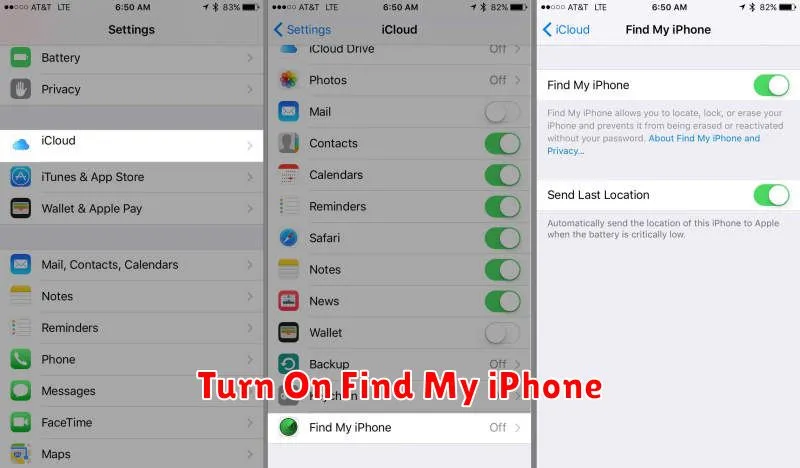
Find My iPhone is a crucial security feature that can help you locate a lost or stolen device. It allows you to track your iPhone’s location on a map, play a sound to help you find it if it’s nearby, lock it remotely, or even erase all its data to protect your privacy. Enabling this feature is highly recommended.
To activate Find My iPhone, navigate to Settings, tap on your Apple ID at the top, and then select Find My. Tap on Find My iPhone and ensure the toggle is switched to the green on position.
Within the Find My iPhone settings, you should also enable Find My network and Send Last Location. Find My network allows your iPhone to be located even when it’s offline by leveraging other Apple devices nearby. Send Last Location automatically sends the device’s location to Apple when the battery is critically low, potentially aiding in recovery even if the device powers off completely.
Use Face ID Securely
Face ID, while convenient, should be configured with security in mind. Review these settings to ensure your iPhone remains protected.
Require Attention for Face ID
Enabling this feature adds an extra layer of security by requiring you to look directly at your iPhone for Face ID to unlock. This prevents unauthorized access if your phone is held up to your face while you’re asleep or unaware.
Feature Access Control
Carefully consider which features you want accessible via Face ID. You may wish to restrict access to sensitive features like Apple Pay or password autofill for increased security.
Other App Access
Regularly review which third-party apps have permission to use Face ID. Revoke access for any apps you no longer use or trust.
Adjust Notification Settings
Notifications can be helpful, but they can also be a major source of distraction. Take control of your iPhone’s notifications by customizing them to your specific needs. This will minimize interruptions and ensure you only see the alerts that truly matter.
Begin by navigating to Settings > Notifications. Here, you can manage alerts for each app individually. Consider disabling notifications entirely for less important apps. For apps you want to keep, explore options like customizing alert styles (banners, lock screen, etc.) and sounds.
Focus modes can also help manage notifications. These modes allow you to create custom notification filters for different situations, such as work, personal time, or sleep. By utilizing focus modes, you can curate the flow of information you receive, enhancing concentration and reducing distractions.
One crucial setting is the Notification Summary feature. Grouping less urgent notifications into scheduled summaries can be a powerful way to reduce the frequency of alerts throughout the day. You can customize which apps are included in these summaries and choose convenient delivery times.
Limit Location Access
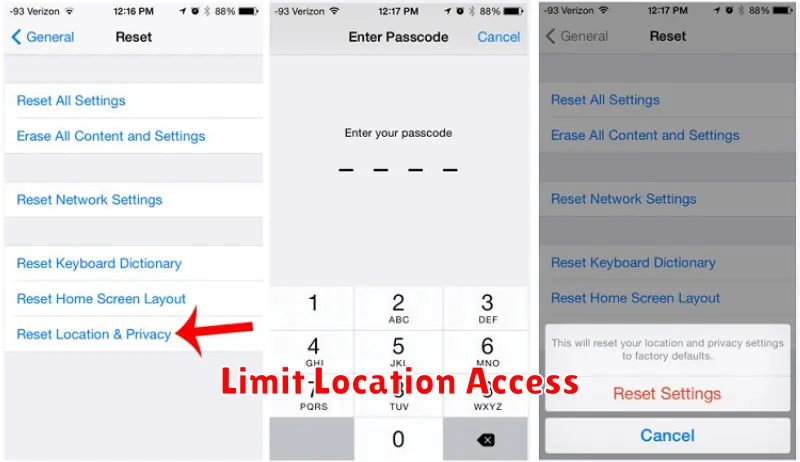
Location Services can be a privacy concern. While convenient, many apps request access to your location even when it’s not essential for their functionality. Reviewing and restricting these permissions can significantly improve your privacy and even extend your battery life.
To manage Location Services, go to Settings > Privacy & Security > Location Services. Here, you’ll see a list of apps that have requested or have been granted location access. For each app, you have several options:
- Never: Prevents the app from accessing your location entirely.
- Ask Next Time Or When I Share: Allows you to grant location access only when you actively use the app or choose to share your location.
- While Using the App: Grants location access only while the app is open and active.
- Always: Allows the app to access your location even when it’s running in the background. Use this option cautiously.
Consider setting most apps to “Ask Next Time Or When I Share” or “While Using the App“. Reserve the “Always” setting for essential apps like navigation or ride-sharing services where constant location tracking is required.
