
In today’s fast-paced world, our smartphones have become indispensable tools, serving as portals to communication, information, and entertainment. With the ever-growing number of apps we download, maintaining an organized and efficient home screen can significantly impact productivity and user experience. This article provides practical tips for organizing apps on your smartphone, enabling you to declutter your digital space and access what you need quickly and effortlessly. Learn how to effectively categorize, prioritize, and arrange your apps for a seamless mobile experience.
A cluttered smartphone home screen can lead to wasted time searching for apps and decreased overall productivity. Implementing effective app organization strategies can transform your smartphone from a source of digital chaos into a streamlined tool. Discover simple yet powerful techniques to group similar apps, prioritize frequently used ones, and leverage built-in features to optimize your smartphone layout. This guide will help you achieve a clean and efficient home screen, making your daily mobile interactions more enjoyable and efficient.
Group by Function
One highly effective method for organizing your apps is to group them by their function. This involves categorizing apps based on their primary purpose or the tasks they help you accomplish. This approach allows you to quickly locate the app you need based on the action you intend to perform.
For example, you could create groups such as:
- Communication: Messaging, email, social media apps
- Productivity: Calendar, notes, to-do list apps
- Entertainment: Games, streaming services, music apps
- Photography: Camera, photo editing, image sharing apps
- Travel: Maps, navigation, booking apps
Consider the categories that best suit your usage patterns. This method promotes a more streamlined and intuitive home screen experience.
Use Folders Efficiently
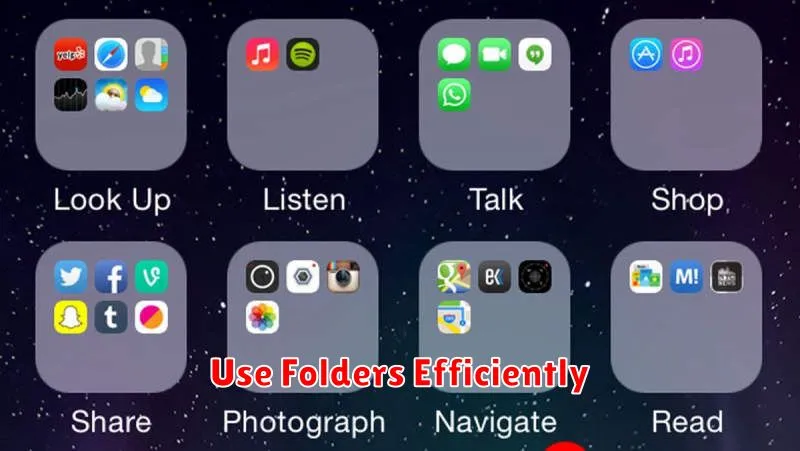
Folders are essential for grouping similar apps and reducing clutter on your home screen. Consider creating folders based on app categories, such as “Productivity,” “Social Media,” “Photography,” or “Games.”
Choose meaningful folder names that clearly reflect the contained apps. This allows for quick and intuitive navigation.
Don’t overfill folders. A folder with too many apps defeats the purpose of organization. If a folder becomes too large, consider subdividing it into more specific categories.
Place your most frequently used folders on your home screen or dock for easy access.
Place Daily Apps on Home Screen
One of the most effective ways to organize your smartphone apps is to prioritize those you use daily. Placing these apps directly on your home screen allows for quick and easy access, eliminating the need to scroll through multiple pages or search through app drawers.
Consider which apps you open multiple times a day. These are prime candidates for home screen placement. This could include communication apps like your email client or messaging service, social media platforms you frequently check, or productivity apps you rely on for daily tasks.
Limit the number of apps on your home screen to avoid clutter. A crowded home screen can negate the benefits of quick access. Focus on the essential apps and relegate less frequently used ones to secondary screens or folders.
Use Widgets for Quick Access
Widgets provide at-a-glance information and instant access to key app functionalities directly from your home screen. This eliminates the need to open the app itself, saving you valuable time and effort.
Consider which apps you use most frequently or need to check regularly. These are prime candidates for widget placement. Examples include calendar appointments, weather updates, to-do lists, and music controls.
Experiment with different widget sizes and configurations to find the optimal layout for your needs. Many apps offer multiple widget options, each displaying varying levels of detail.
Hide Rarely Used Apps
One effective method for decluttering your smartphone’s home screen and app drawer is to hide applications you rarely use. This doesn’t uninstall them, simply removes them from immediate view, making it easier to locate frequently used apps.
Most smartphones offer built-in features to achieve this. Check your device’s settings for options like “Hide Apps,” “Disable Apps” (for pre-installed apps), or similar terminology. Some launchers also provide this functionality. Hiding apps helps streamline your phone’s interface without permanently deleting anything.
After hiding apps, you can typically still access them through the app library or by searching for them by name. This allows you to keep rarely used apps readily available when needed while maintaining a cleaner and more organized app experience.
